AI image extender
for the
frame
you need.
Upload a photo, choose the size you need, and generate a new background around the existing frame instead of cropping the subject. Set up as many as five images before signing in.
- 1Upload
- 2
- 3
or drop photos here
JPG, PNG, WEBP · up to 5 images · 10 MB each
Source uploads and generated images are kept for 24 hours. Download results before they expire. Storage details
How the AI image extender works
Upload, pick the target frame, then generate when the setup looks right. One finished image uses one credit.
- 1Upload
Add one image or a batch of five.
- 2Choose frame
Preview the new aspect ratio before spending credits.
- 3Generate
Download one result or export the whole batch as a ZIP.
Describe the missing area, not a new picture
A useful direction names the surface or atmosphere that should continue: the same white studio wall, the wood floor, the evening sky, or the soft shadow behind a product. Keep the request narrow when the source image already has the subject and composition you want.
Review the seam before you use the result
Outpainting creates new content where the original photo ends. Check perspective, repeated patterns, reflections, hands, text, product details, and architecture at full size. If the continuation looks wrong, adjust the direction or choose a less extreme ratio and generate again.
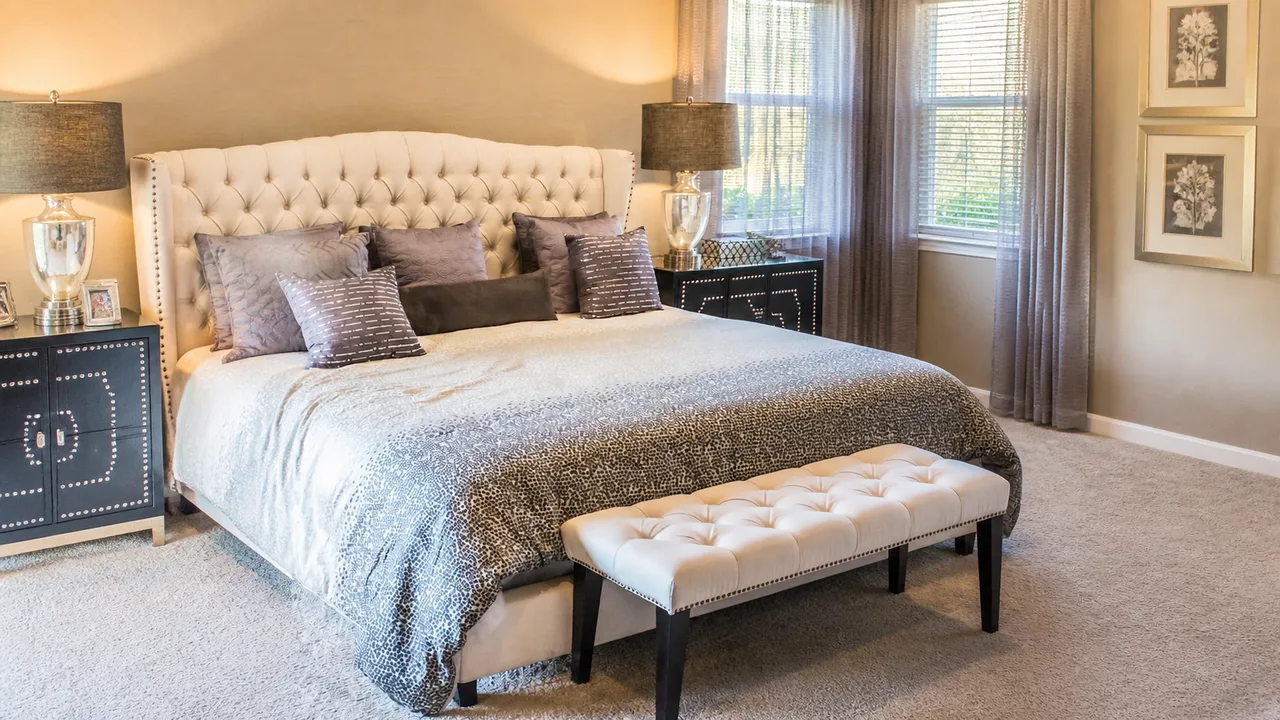
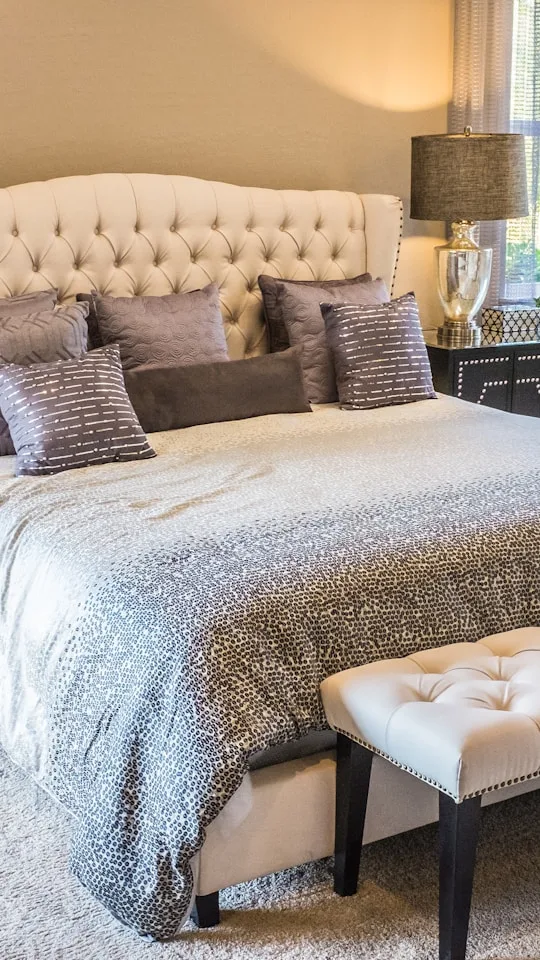
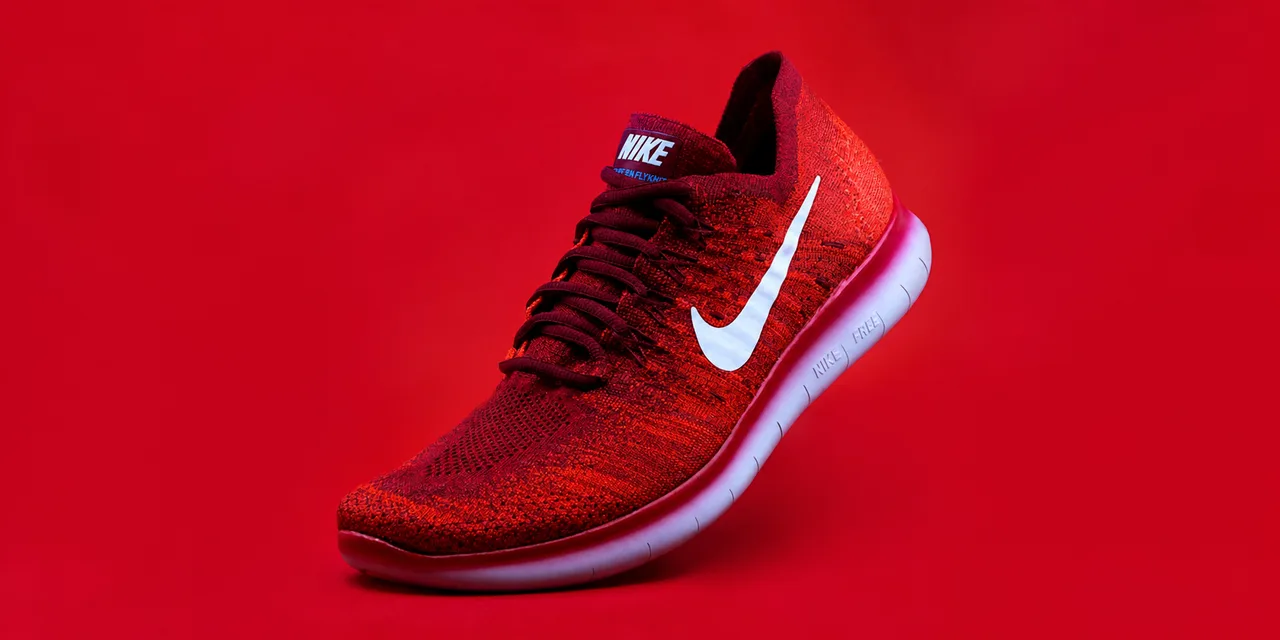
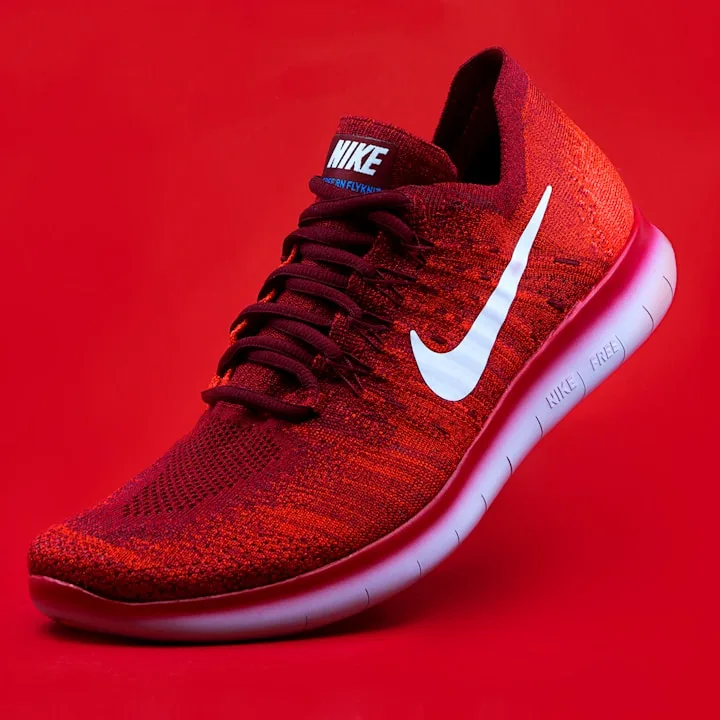
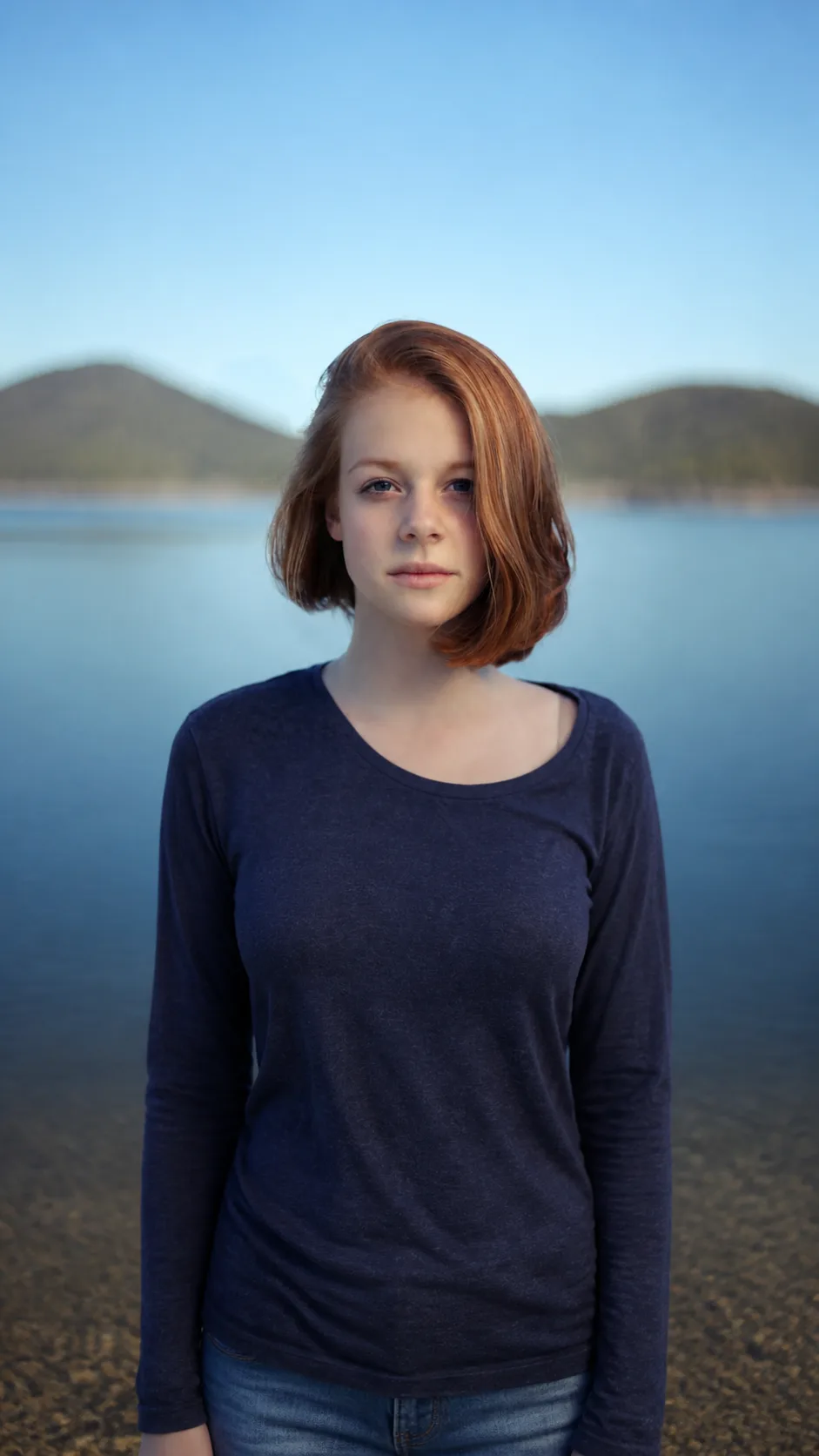
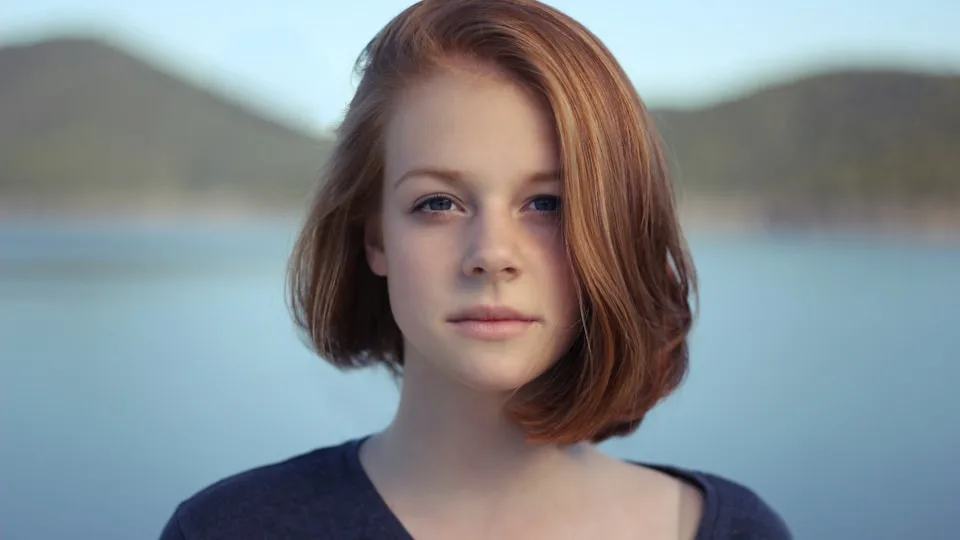
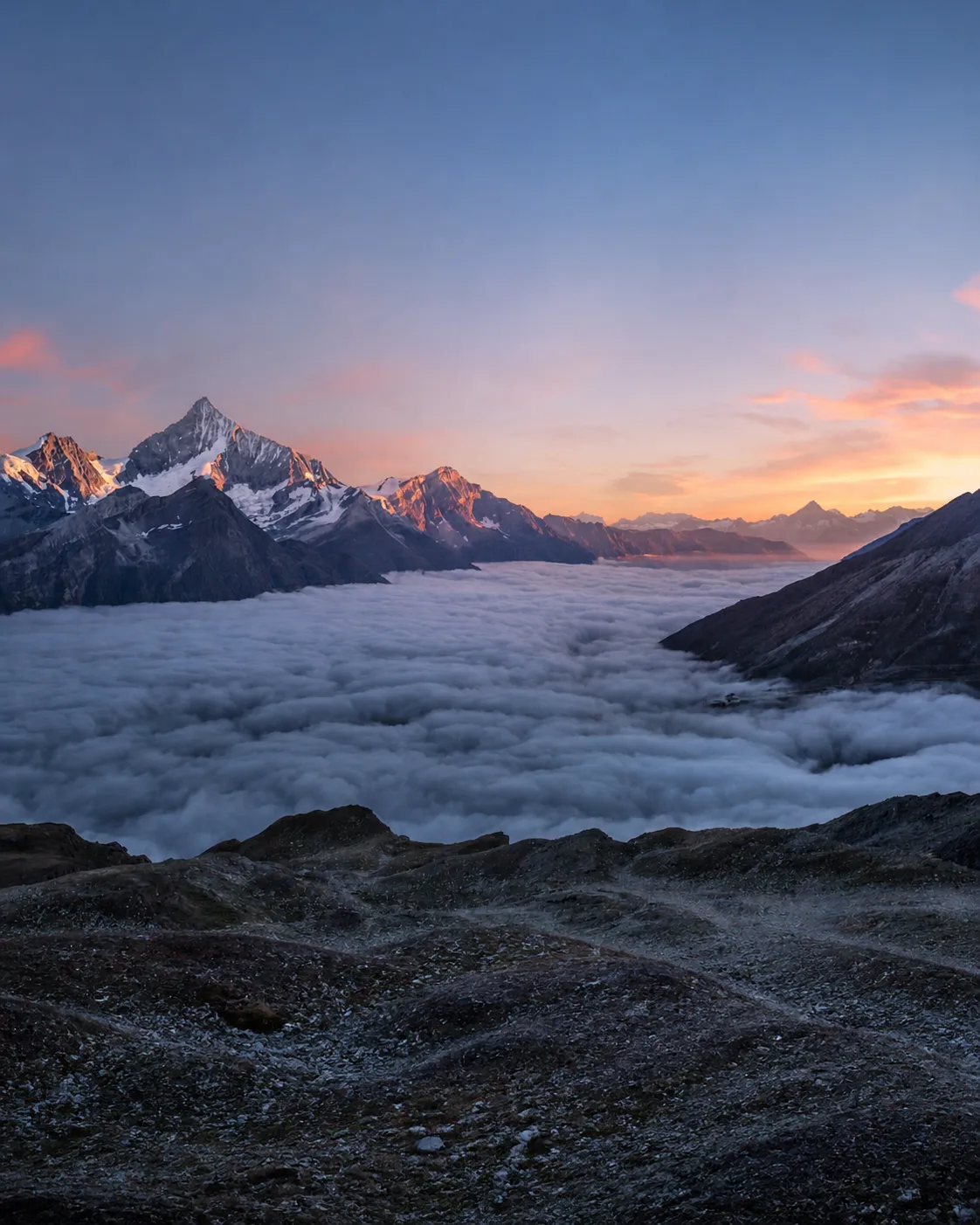
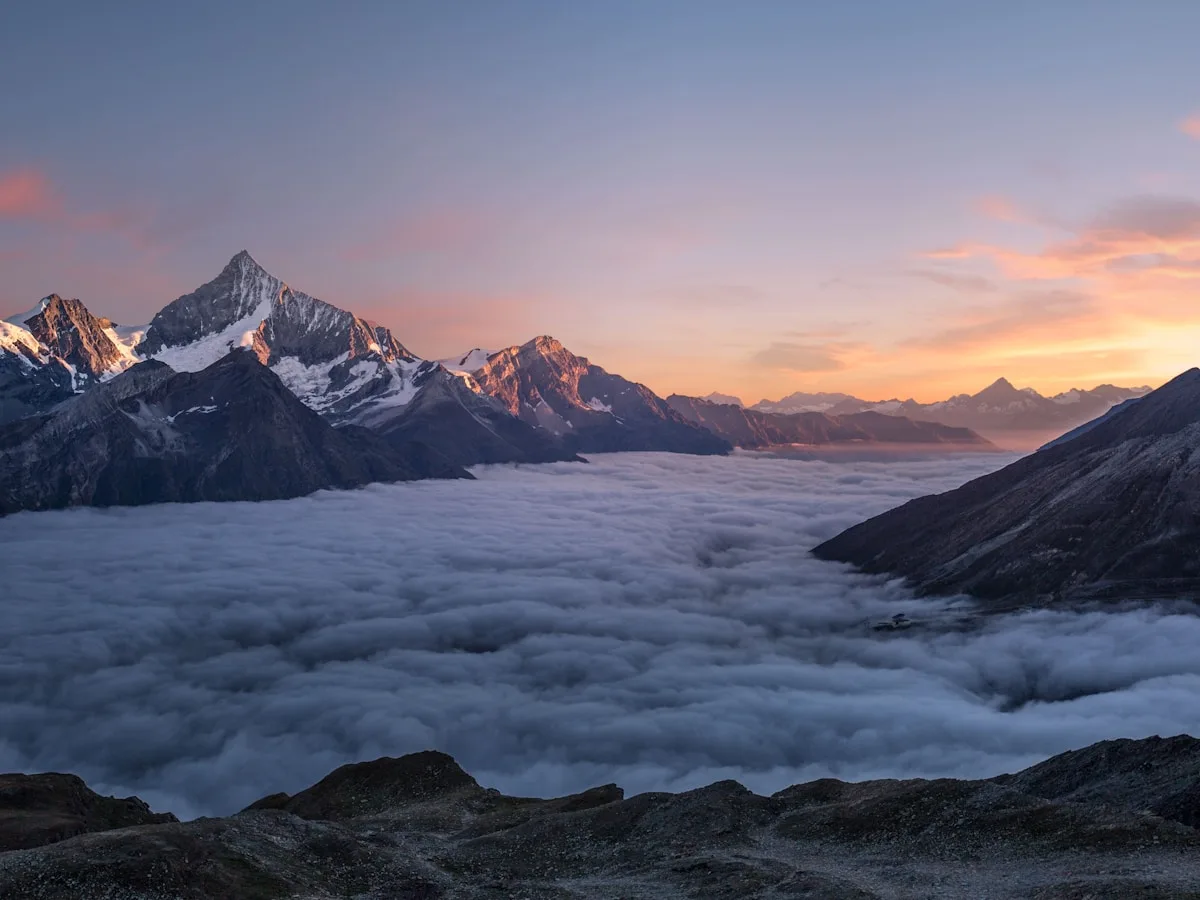
AI image extender before-and-after examples
The small dashed frame is the original source at its original ratio. The larger solid frame is the extended result at the target ratio. Compare the generated edges, perspective, and original subject before deciding whether a result is ready.
Fit one photo into real publishing workflows
Browse all use cases →Extend Real Estate Photos for Listings
Turn vertical room photos into 16:9 or 4:3 listing images without cropping away the space.
/use/ecommerceExtend Product Photos for Amazon & Shopify
Adapt one product photo for a square marketplace image or a wide storefront banner.
/use/social-mediaExtend Image for Instagram, TikTok, LinkedIn
Prepare the same photo for a 4:5 post, 9:16 story, 16:9 cover, or 1.91:1 link card.
/use/posterExtend Image for Poster Printing
Add room around a landscape or subject so it fits a taller print, poster, or presentation frame.
What to check before download
These checks are more useful than generic praise. Run them on every generated image before using it in a listing, product page, post, or client draft. Review in this order: the original subject, the generated seam, perspective, repeated patterns, and final dimensions. A result can look convincing at page size and still contain a bent line, duplicated object, or broken shadow at full size. If legal text or exact product details sit near the edge, use a manual editor for the final correction.
-
Check that the original subject still matches
The extender is meant to add canvas outside the source frame. Because the result is generative, important details can still shift near an edge or seam.
- ✓ Compare faces, hands, products, and rooms
- ✓ Reject outputs that alter logos, labels, or facts
-
Best for continuous backgrounds
Rooms, sky, floors, studio backdrops, product surfaces, and simple walls usually extend cleanly. Busy borders need a short direction.
- ✓ Use a prompt hint for floors or walls
- ✓ Crop cluttered edges before generating
-
Preview the frame before credits
You can upload images, choose the ratio, and inspect the crop boundary before signing in. Credits are only used when you generate.
- ✓ Batch up to 5 images
- ✓ 1 finished image uses 1 credit
-
Look closely at difficult edges
Cut-off hands, half-visible signs, dense shelves, reflections, and repeating patterns are harder to continue. Treat the first result as a draft when an edge looks ambiguous.
- ✓ Inspect corners and seams at full size
- ✓ Never rely on generated text for legal or factual use
-
Confirm your source rights and export
Generated extensions can be used in commercial work when you have permission to use the source. The final platform and accuracy review still belongs to you.
- ✓ Paid saves have no watermark
- ✓ Failed provider jobs return the used credit
Frequently asked questions
What is an AI image extender?
An AI image extender adds new image content beyond the original edges so a photo can fit a wider, taller, or square frame. This process is also called AI outpainting. Cropping removes part of a photo, while resizing stretches the pixels already there. Outpainting keeps the existing composition in the frame and generates the missing background around it.
Is this free to start?
Yes. You can upload up to five images, choose a target canvas, and preview the new frame before signing in. Generation requires an account. Signed-in free accounts receive 5 credits each month with no card required, and one finished image uses one credit. Credit packs and subscriptions are available when you need more images.
Which formats and ratios are supported?
The tool accepts JPG, PNG, and WEBP files up to 10 MB each, with as many as five images in one batch. Ready-made aspect ratios include 1:1 square, 4:5 portrait, 4:3 standard, 16:9 widescreen, 9:16 vertical, and 1.91:1 wide banner. The presets are labeled for common uses such as posts, stories, listings, product banners, and slides.
Will the extender leave my subject unchanged?
That is the goal, but it is not a guarantee. The tool is designed to add content outside the source frame rather than replace the center subject. Generative models can still change details near an edge or produce an imperfect continuation. Compare faces, hands, products, logos, text, architecture, and repeated patterns with the source before downloading or publishing.
What kinds of photos extend most cleanly?
Photos with open sky, walls, floors, studio backdrops, landscapes, or other continuous backgrounds are usually the clearest fit. Harder cases include a face cut by the edge, half-visible text, crowded shelves, complex reflections, or objects that continue outside the frame. A short direction such as “continue the wood floor and white wall” can help the model understand the missing area.
Can I use an extended image commercially?
Commercial use is allowed for generated extensions, but you must have the right to use the source image and follow the rules of the platform where you publish it. AI outpainting does not give you rights to someone else’s photo, logo, artwork, or product. Review the result for accuracy before using it in a listing, campaign, client draft, or print project.
Explore related pages
More image extender pages
Free-start tool, comparison guide, alternative workflow, and the expand/expander wording of the same tool.